
Running Torizon OS using PhobOS Emulator Manager
Run Torizon OS on your computer without supported hardware
Did you want to run Torizon OS, to evaluate, try the experience, but you do not have a supported hardware? Say no more, the PhobOS Emulator Manager is here to help you!
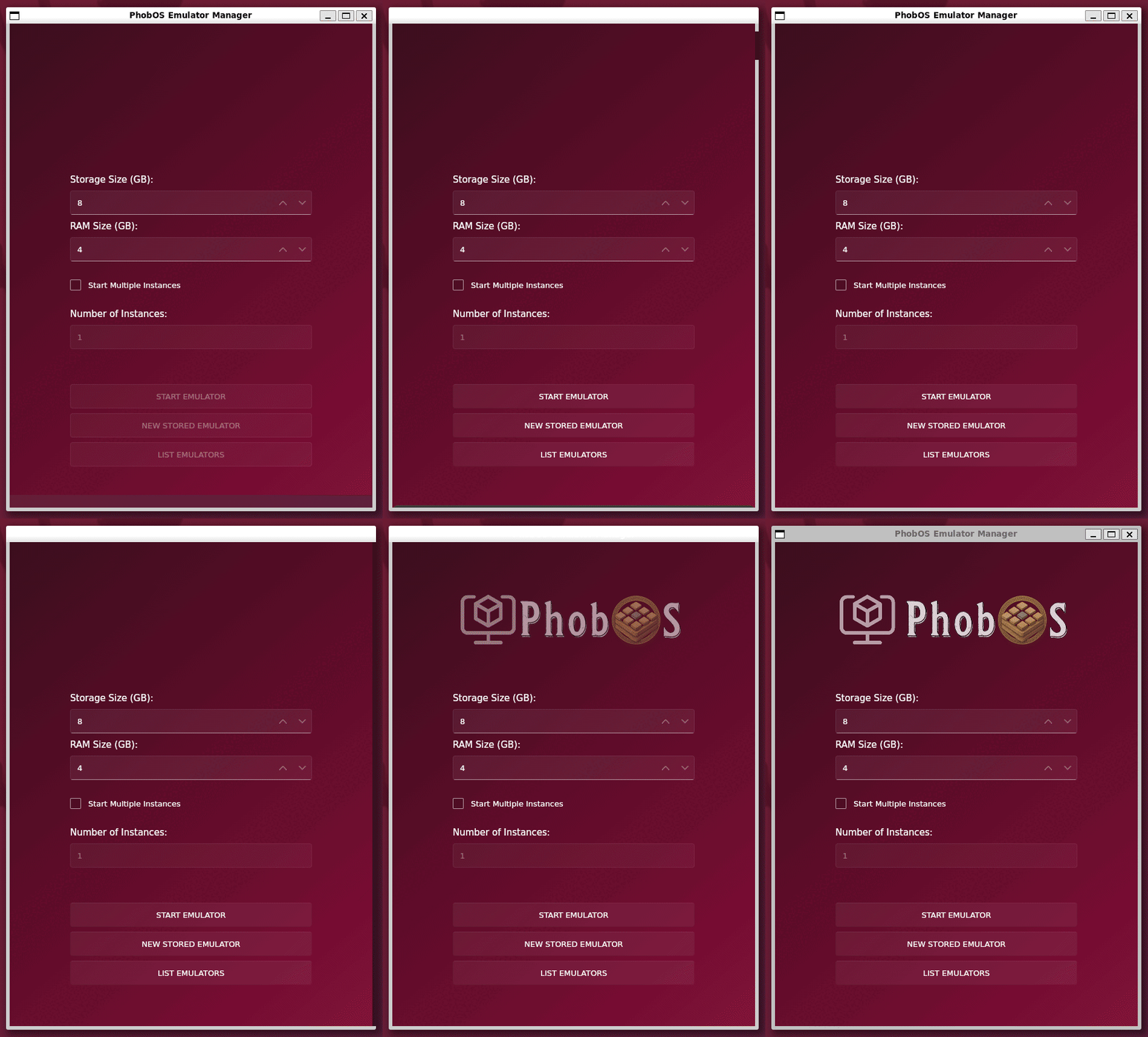
PhobOS Emulator Manager is a tool that makes easy to virtualize Torizon OS or PhobOS on your computer. All you need is a Linux machine with Docker installed.
Installation
By a simple command you can get the latest version of PhobOS Emulator Manager:
wget -qO- https://github.com/gaiaBuildSystem/phobosEmulatorManager/releases/latest/download/install.sh | bash You can use this command to also update your PhobOS Emulator Manager installation.
This script will check your system and install the command phobos-emulator-manager.
Dependencies
- wget
- Docker
- Docker compose plugin
- Linux kernel with KVM* support
KVMis strong recommended, but not mandatory. If you do not have KVM support, the emulator will run slower. PhobOS Emulator Manager will check if you have KVM support and will run the emulator with or without KVM automatically.
WSL 2 does to not come with KVM support out of the box, check the post Using latest Kernel Linux on WSL 2 - KVM support included
Where get a supported Torizon OS Image
Common Torizon, that builds the x86_64 version that we will use with the PhobOS Emulator Manager, was moved from GitHub to the weird Toradex artifactory. So, to get the latest Torizon OS image, you need to check it on the Artifacts -> common-torizon-x86-oe-prerelease-frankfurt -> scartghgap-7.x.y -> nightly -> (bigger number) -> intel-corei7-64 -> common-torizon -> torizon-docker -> oedeploy -> torizon-docker-intel-corei7-64.wic.

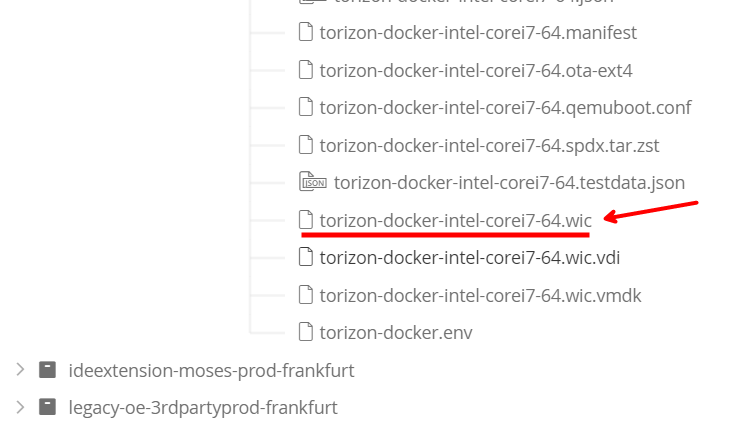
Yeah I know, it is a lot of steps. But, is this or you have to build your own Torizon OS image using Yocto. What do you prefer?
Running the .wic image
With the image downloaded, you can run the PhobOS Emulator Manager with the following command:
phobos-emulator-manager /home/youruser/Downloads/torizon-docker-intel-corei7-64.wic Remember to use the absolute path to the
.wicimage. PhobOS Emulator Manager was designed to run the embedded PhobOS image from inside the container image. To run Torizon OS we are using a feature that allows us to run an image from outside the container, but it requires the absolute path to the image.
This will open the PhobOS Emulator Manager UI. Then, you can choose how many storage size and how much RAM you want to use for the Torizon OS virtual machine. The default values, 4GB of RAM and 8GB of storage, are enough for most use cases. But you can change it if is not enough for your needs. With the values set, click on the START EMULATOR button to start the Torizon OS virtual machine:
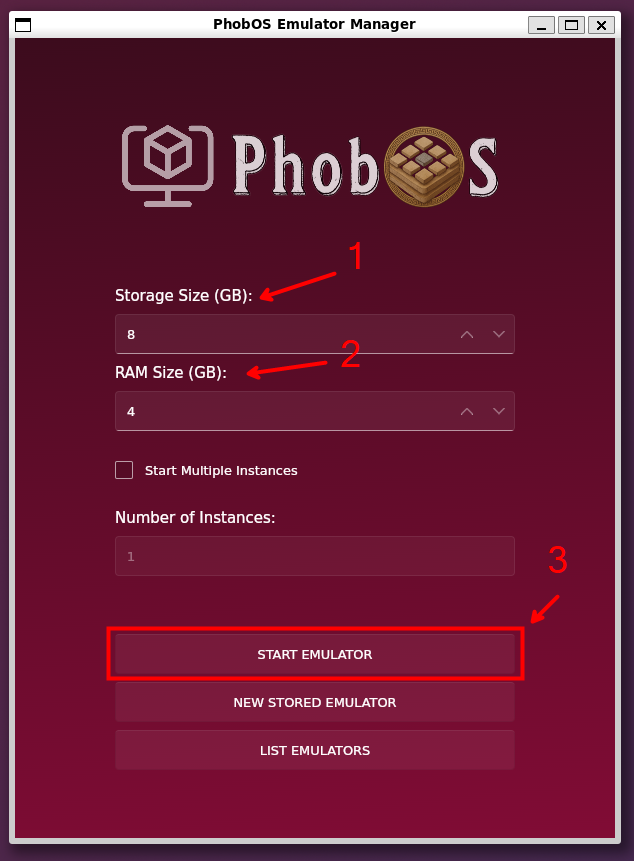
Then PhobOS Emulator Manager will start the magic and you will see the Torizon OS booting up:
Is important to note that this image is not optimized for virtualization and there is some details important to know. The screen window will not show the login prompt, so is not possible to use it to login, instead you have to use the serial console to access the system. The serial console will be redirected to the terminal that you ran the phobos-emulator-manager command. The login is torizon:torizon, and the system will ask you to change the password on the first login.
Conclusion
PhobOS Emulator Manager is a great tool from the PhobOS ecosystem. It allows you to run Torizon OS image on your computer without any complicated configurations, all you need is Docker installed. It is a great way to evaluate Torizon OS, try the experience, try the https://torizon.io cloud features.